
When it comes to travel, map apps are an indispensable part of our toolkit that sits loaded on our smartphone. We use it to find read reviews of nearby restaurants, find pins on a pre-planned route, browse custom maps, and maybe even the best closest emergency bathroom. It’s one of the single reasons I don’t get as lost as I do before (I still do) and why I think we’re all more comfortable with travelling off the cuff.
The thing is, as much as Google Maps has become synonymous with mapping, it isn’t the only game in town. I hope I’m not the only one but offline functionality is incredibly important to me. That may be because I’m sometimes too cheap to pay for roaming or maybe I’m in a blackout area but I’ve learned that I should always be “offline ready”. I’m here to share with you an alternative to Google Maps that offers the best offline maps app solution – Maps.me and from there, I’ll also show you how I migrate maps that I plan with Google’s My Maps and import them via KML files.
Read more travel tips
- Pocket-sized currency conversion cheat sheet
- 12 of the best apps for Japan travel
- Best Hilton Honors Category 1 hotels that only cost 5,000 points
- Learn about Skyroam and why I use it when I travel
- All travel hacking articles
How to get the best deals in travel
- Hottest deals – Bookmark the travel deals page.
- Car rentals – stop getting ripped off and learn about car rental coupon codes.
- Hotels – Use corporate codes or get Genius 2 tier with Booking.
- Flights – Have you ever heard of the “Everywhere” feature?
- Insurance – Make sure you’re covered and learn more about where to buy the best travel insurance.
In This Article
Best Offline Maps App for Travellers

As much as I love love LOVE Google Maps, there are things to be desired and for me that really comes down to offline capabilities. Tell me if you can relate.
Why offline Google Maps kind of suck

For years, the offline feature was a bit of a secret. You had to use “Ok Maps” in the search bar and based on what you have in the app’s field of view, it’ll save that offline. Today, they’ve made it a bit more obvious with the “Offline” part of the menu where you can see all of your saved maps but it largely works the same and you can still “Ok Maps” as you please.
So here’s why it’s a bit of a letdown. I loved being able to pin places or more specifically, add “Save” places in Google Maps as either “Favorites”, “Starred places”, “Want to go”, or even your own custom list. It’s super convenient because I can plan on the computer and it’ll show up on my phone or vice versa.
When I’m at home, it’s great but when I don’t have data, you pull up the app and while you can see the topography of the map, those pins disappear.
Those pins disappear
Over the years, I’ve learned to hack it by making sure I pull up my map while I have wifi/data and just keep Google Maps open the whole time so it doesn’t have to reload.
Even then, need to find a point of interest on the fly without data or want to zoom in the map to see detailed places, forget about it!
Enter Maps.me

I could’ve probably created this guide by listing out ALL of the other possible mapping apps that are out there but I wanted to keep it simple and just focus on the flat out best one that travellers use.
Maps.me started off a a small startup based in Zurich and won a startup competition in 2012 to propel them forward. Fast-forward to today and they’ve since then been acquired by a Russian internet company and continues to use OpenStreetMap as its foundation for their maps.
The key behind their success is that they continue to use OpenStreetMap as its foundation for their maps. This is open-source software that is made free for the public to use. So instead of propriety tech by giants like Google, most of what you see through OpenStreetMap is created through entries by enthusiasts, professionals, engineers, and anyone else passionate about building better maps. To give you an idea of how involved the community is, 9 months after Maps.me allowed app users to make changes, over 1 million edits were recorded.
Why Maps.me is awesome for travel
What it comes down to is really offline usage. All of those problems offline with Google are essentially solved with Maps.me.
- You can actually search offline – you can search by name, address, categories, or coordinates.
- Goes beyond just travel in the city – for those that hike or spend time in the wilderness, Maps.me has a ton of detail including trail names.
- Metro overlay is available – If you don’t have a transit map in a separate app, you can use this to help figure out how to get around in a city.
- Travel guides – You can download user generated guides that are self-guided walking tours.
- Bookmarks – Similar to those custom pins on Google Maps, you can also create your own pins in Maps.me and they do show up when you use the app offline.
- Turn-by-turn navigation available – now I normally wouldn’t use this feature it’s just not going to be as good as Google Maps, it’s there in a pinch when offline.
- Bonus features – You can search hotels with their partnership with Booking.com and even book an Uber. You can also share your location with friends.
- Local guides feature – I’ve never used this but the app has a “Discover” feature and they’ll show you locals that run their own tours that you can book.
- Ability to import KML files – We’ll get into this soon but it’s a super handy feature for those that plan trips with Google My Maps or if you’re a serious hiker and want to pull in something like the entire Milford Track trail in New Zealand from AllTrails.
What could be improved with Maps.me
As with all apps, there are things that I’m not completely in love with when it comes to Maps.me. Here’s what annoy me about Maps.me
- Not super slick – If you’re used to Google Maps, Maps.me just won’t look or feel very polished. Polished might not be the right word but it’s just not as good of a user interface and the maps can often feel a little overcrowded.
- Takes getting used to – Part of this is that you get used to using Google Maps and when you go to Maps.me, the interface is jarringly different. You have to figure out what these new icons mean and how to use the menu.
- Ads – It’s a free app and so they’ve had to add banner ads in a number of places which can get quite annoying because of the limited screen space on your phone.
How we use Maps.me
I pretty much use Maps.me exclusively for its offline functionality. It’s my lifeline when I’m on the road and as someone that’s an OCD planner like myself, I like to be ready.
If you’ve read the art of trip planning, you’ll know that maps are a big part of the process. I plan out my itinerary on with my Google spreadsheet template and then I plot all of the places onto a map.
This map usually ends up being on Google’s My Maps tool. Now this is honestly just part of the Google Maps product but they had to have another name for it. I create a custom map and it was a great idea because I learned that I could pull up custom maps from Google Maps on my phone ( Menu > Your Places > Maps tab) and it’d have all of my planning details in there.
Great idea until you don’t have cellular data and then it completely crumbles and fails.
That’s when I started using Maps.me and added another step (annoying I know) where I simply export my map into something called a KML file and import it into Maps.me as a bookmark list and voila it’s all in there.
Now when I travel, I know I can reliably pull up Maps.me with the local maps downloaded offline and pins loaded to figure out where I need to go and how I can get to the next spot.
How to migrate your Google My Maps to Maps.me
The Maps.me app has gone through a significant overhaul since this was originally written in 2019. As a result, we’re refreshing the screenshots with what you would do today. It’s pretty similar but the user interface is different.
UPDATE: For a tad little while, Maps.me stopped supporting KML files completely but it looks like they’ve brought it back. Phew right!
Alright so I’m going to go through a very specific scenario of mine to provide you step-by-step instructions for how you can import your custom Google Map pins into Maps.me.
Step 1: You need a custom Google Map
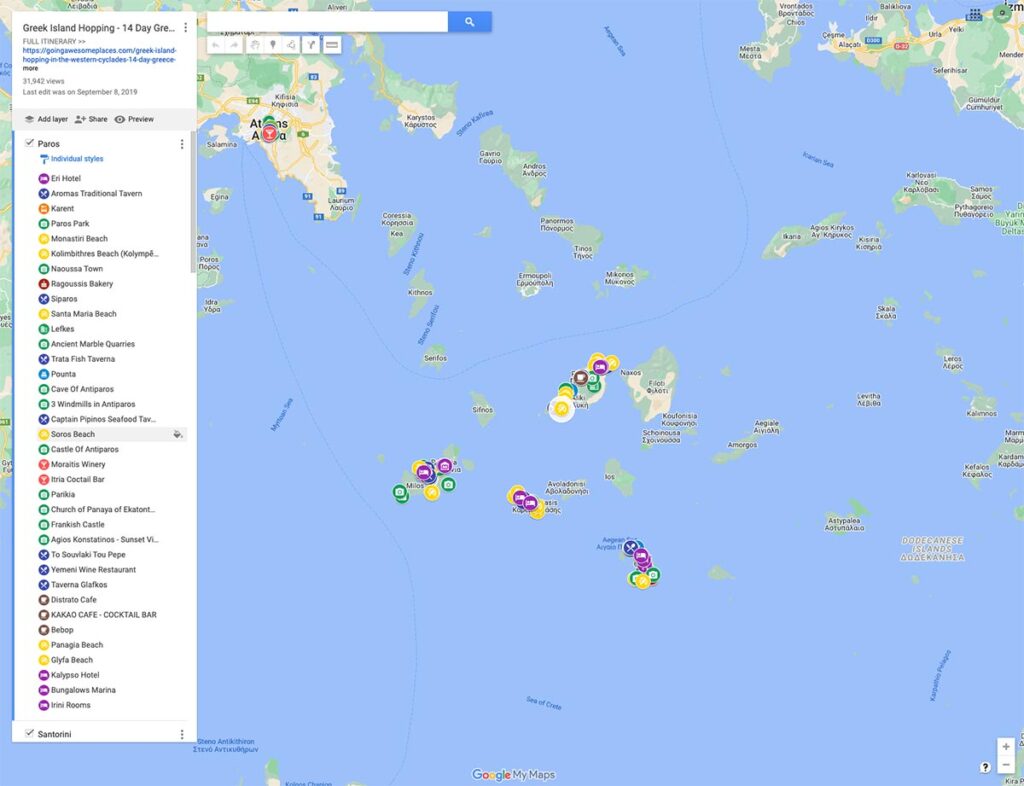
This is the obvious step but I want to make sure I’m clear that this really only works if you used the My Maps tool with Google to create your own custom maps.
I created one for our 14 day Greece island hopping itinerary.
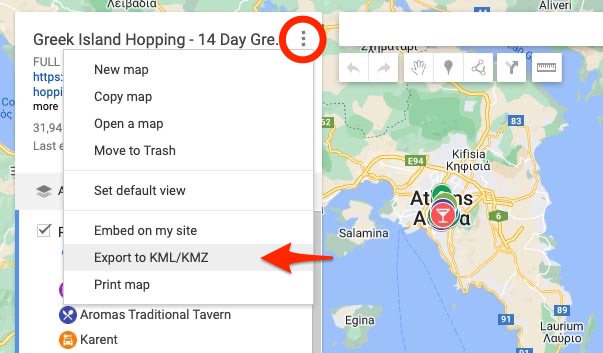
Step 2: Export the Google Map
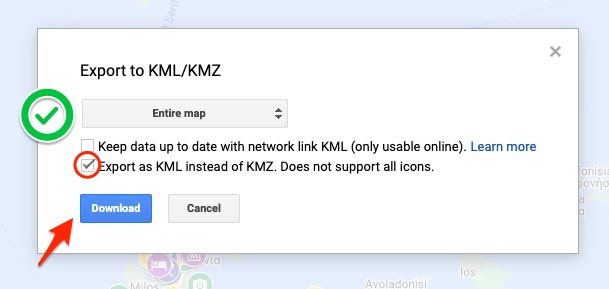
The option to export is pretty easy but you’ll need to make sure you have the checkbox selected to save it as a KML file which Maps.me can read. This KML file won’t include any map tiles but will contain all of those pins you’ve created and notes if any.
There’ll also be a dropdown that will allow you to choose what layers of the map you want exported but most likely you’ll want all of it to be exported.
NOTE: You need to do this on a desktop/laptop computer and not on your phone.
Step 3: Email the file to yourself
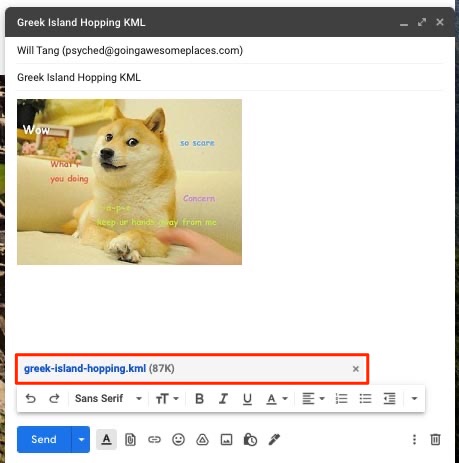
I’m sure there are a number of different ways you can do this but this is the simplest. Drop the file you just saved from Google into an e-mail and send it to yourself.
Step 4: Open the file with Maps.me
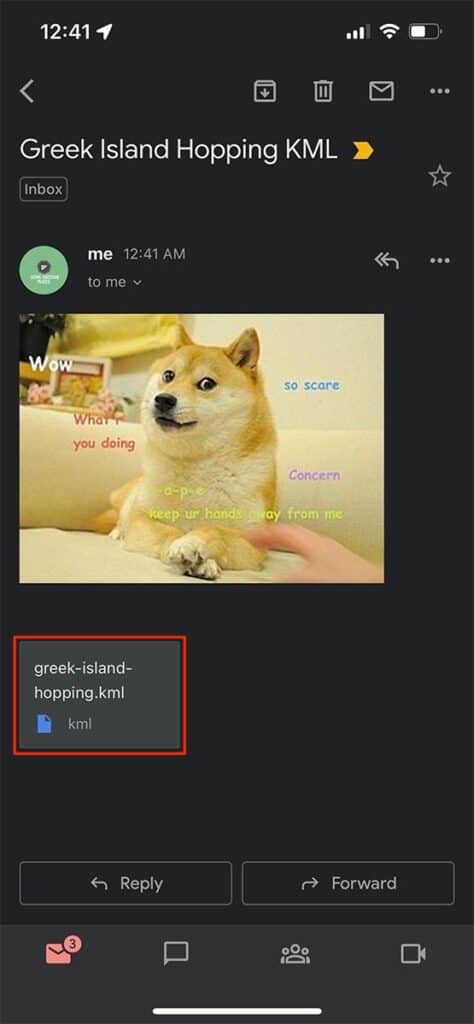
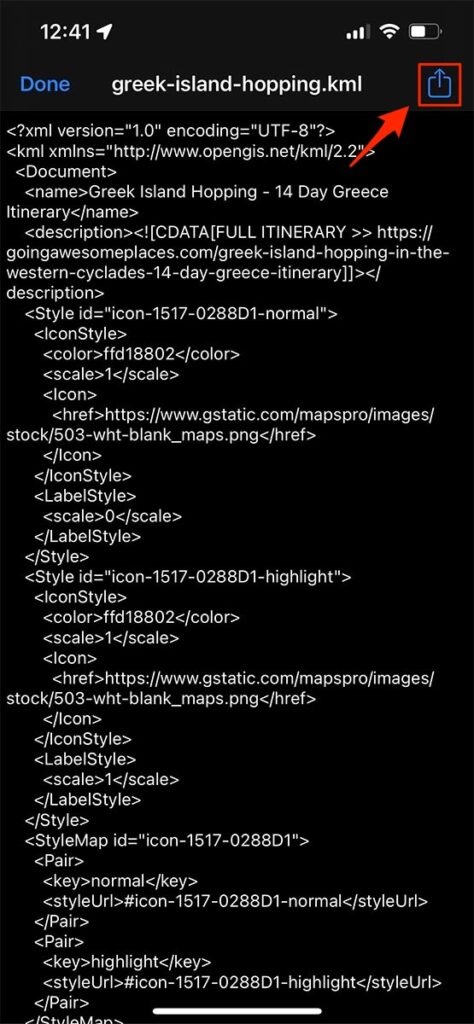
With your favourite e-mail app, open the e-mail you just sent to yourself and tap on the attachment to open it. It might open up a page of gibberish code.
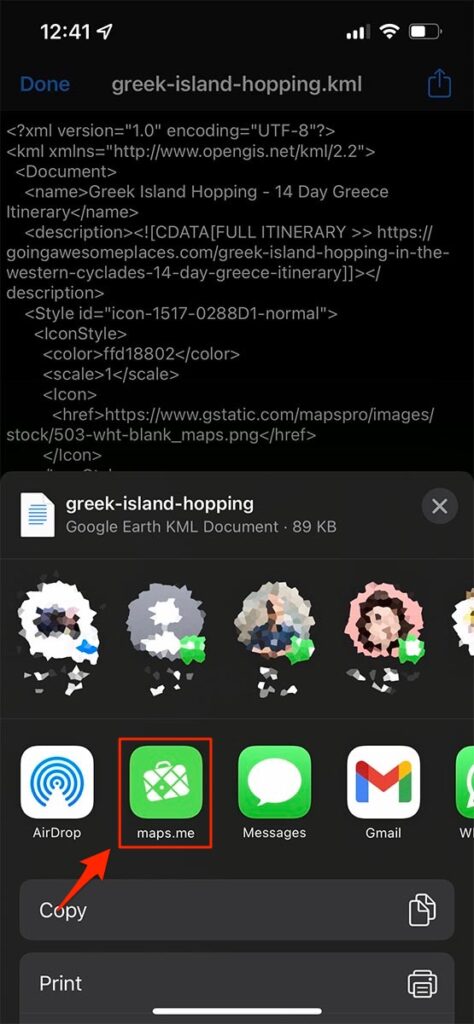
From here, tap the share icon.
If you are on iOS, with the share prompt open, look for the Maps.me app in the list. If it’s not there, scroll all the way to the right and tap on “More” to be able to find Maps.me from the list.
Android should be similar.
Step 5: Automatically imported to bookmark list
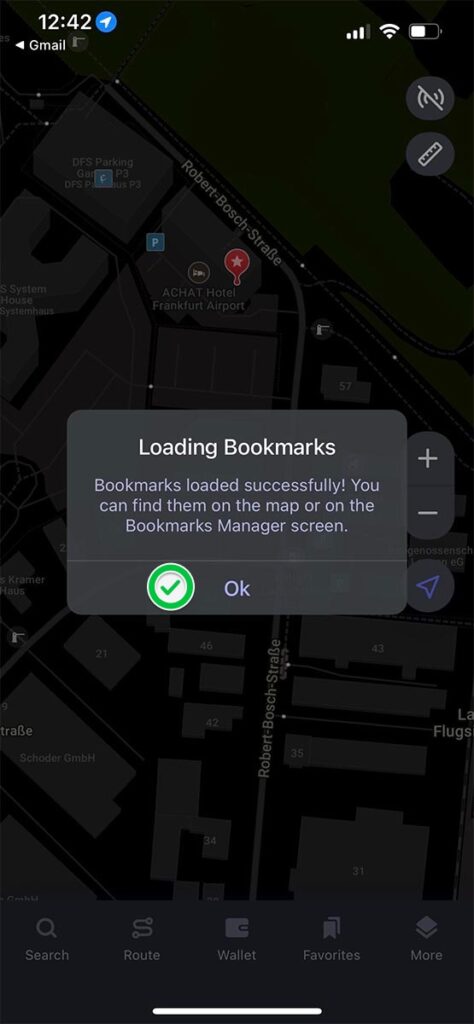
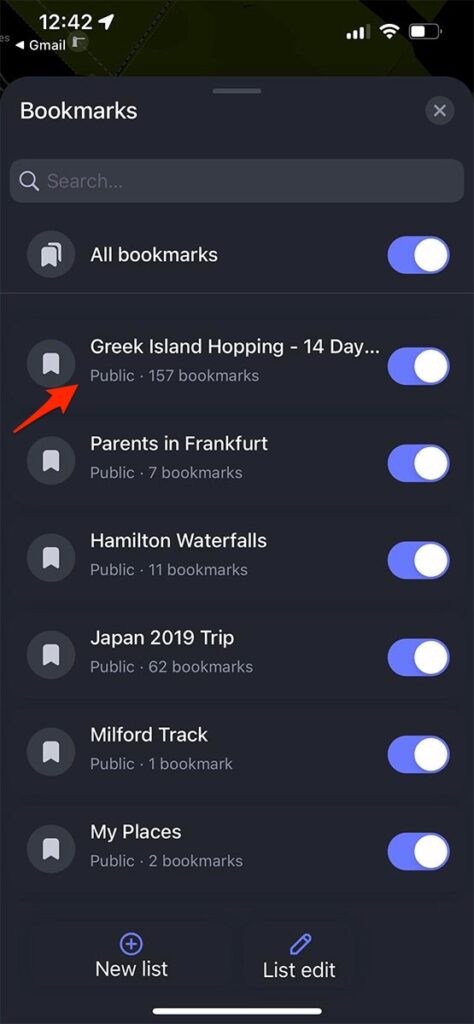
Maps.me will automatically open on your phone and you’ll get a prompt saying that the bookmarks were loaded.
From the bottom menu of the app, you’ll see that your map will be imported when you go to “Favorites”.
I know, don’t get me started on why the menu doesn’t say Bookmarks.
Step 6: Edit the bookmarks if needed
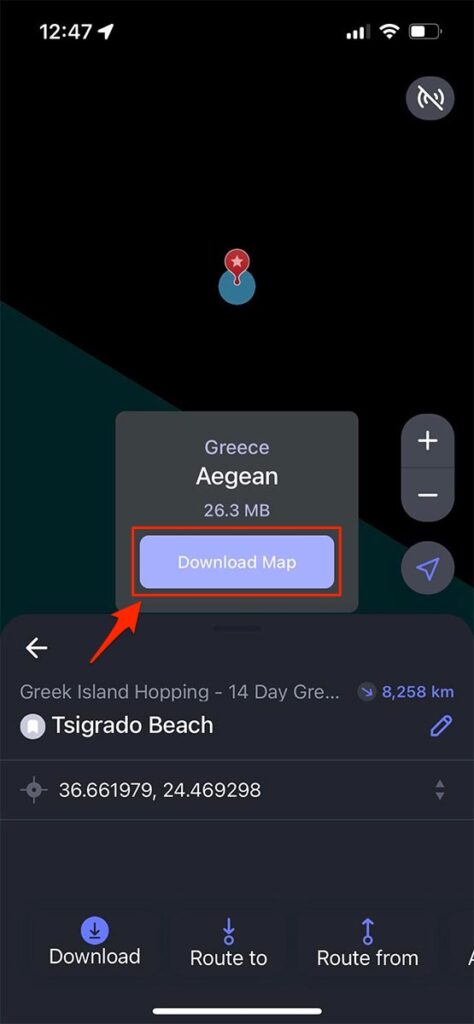
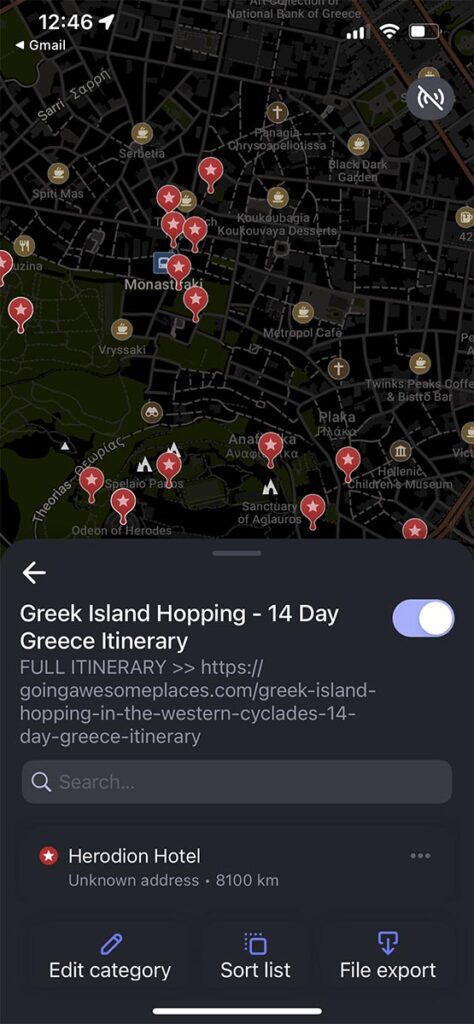
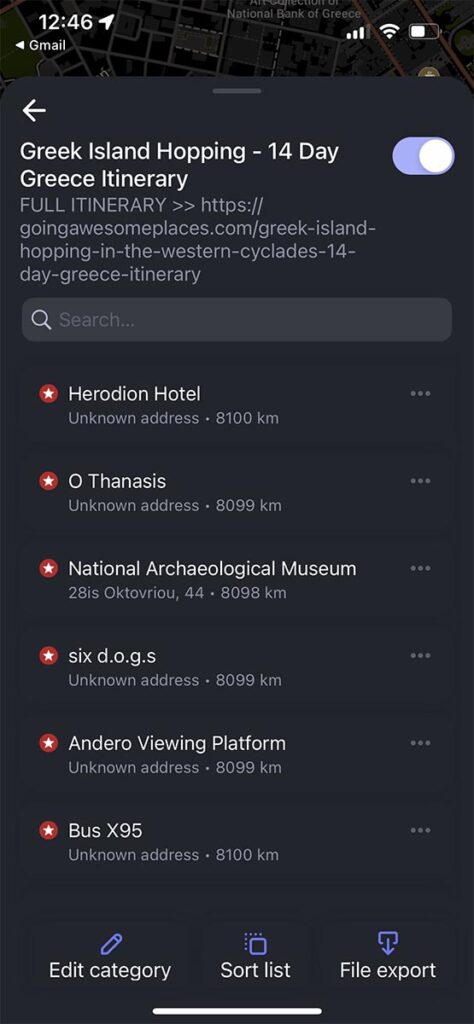
Within bookmarks are all of the other maps you may have imported in the past, bookmarks you’ve created within the app, and of course the KML map that you just imported.
To edit the bookmark, it’s not the most obvious. You have to double tap on the bookmark group (in this example, it’s “Greek Island Hopping – 14 Day Greece Itinerary”. Tap on one of the locations and the map will jump to that location.
If the local map isn’t downloaded, it’ll prompt you to download it.
At this point, you’ll be able to edit and improve the map within the app by taping the 3 dots (…). Things you can do include changing the icon color and being able to add a description
NOTE: One thing that doesn’t get translated over are the custom icons that Google Maps has and that’s simply because Maps.me doesn’t have any of those. All the pins are the same but you can change the colour afterwards if you want.
Best offline maps app solution that isn’t Google Maps?
So that’s my pitch for Maps.me and why I think it’s a super handy tool to have for any traveller.
Is it the perfect solution? Not really but until Google Maps allows you to use custom maps offline including pin location data, this might be the best way to go.
The beauty of Maps.me is that it’s built with offline maps in mind. By default it’s in offline mode.
I’d love to hear from your experiences though. Love it or hate it, what are your thoughts on Maps.me as a mapping tool, how do you use it, and how do you wish it could be improved?
What you should read next
Travel Resources For Your Next Trip
If you’re in the process of planning your trip and putting together your itinerary, these are genuinely the best resources that the Going Awesome Places team stands by 100%.
Credit Cards
Don’t get burned by hidden fees on top of terrible exchange rates. When we travel now, we use the Wise Card. Simply load it with the currency you need before you go and use it as a regular VISA or their digital wallet card. Use their free app to track how much you have and top up when you need to.
Flights
In our opinion, of all the booking search engines, Skyscanner is the most helpful and easy to use thanks to their Everywhere feature. Kayak is also another that’s we will often check.
Car Rental
If you’re looking to save money, these car rental coupon codes will be a true game-changer. Otherwise, DiscoverCars and Booking’s car rental platform are great places to start.
Rideshare
You probably already have accounts but if you don’t, for new Lyft users, use code WILLIAM4825 to get 50% off your first 2 rides (max $10 per ride). Offer valid for 14 days after you take your first ride. For new Uber users, use code cbh4j6plxt8p for the same offer except it’s valid for 30 days.
Airport Parking
You’ll need a spot to leave your car at the airport so why not book a spot at a discount. Use code AWESOME7 to get at least $5 off at Airport Parking Reservations or Park Sleep Fly packages.
eSIM
eSIM: This is our go-to way of staying connected. Below are the discounts we have acquired for our readers.
- AmigoSIM – Use GOINGAWESOMEPLACES to save 25% off. Code is re-useable.
- Gigsky – Use TANG149 to get $3 USD when you sign up, then use code GOINGAWESOME to save 20% on all eSIM orders.
- Airalo – Use referral code WILLIA9500 to get $3 USD credit on your first purchase.
- KnowRoaming – Use code GAP10 to save 10%.
- AloSIM – Use code GOINGAWESOMEPLACES to save 15%.
- Ubigi – AWESOME10 to save 10% on your first order.
- Holafly – Use code GOINGAWESOMEPLACES to save 5%.
- Roamless – Use code AWESOME20 to save 20.
- Saily – Use code GAP15 to save 15%.
Make sure to read our article on breaking down the cheapest eSIMs for travel to learn more.
Wifi Hotspot
We’ve been a huge fan of wifi hotspot devices such as PokeFi (use code GAP24300) because their rates are are hard to beat and it works globally. Solis is another that we recommend. Pros are that you can share the wifi with your whole group but cons are that you have to invest in a device and you have to charge it every night.
Hotels
Our go-to is Booking.com because they have the best inventory of properties including hotels and B&Bs plus they have their Genius tier discounts. Expedia is also worth using especially with their One Key rewards program which is basically like cash. The exception is Asia where Agoda always has the best prices. Always do a quick check on TripAdvisor as well.
Tours and Activities
When planning our trips, we always check both Viator and GetYourGuide to at least see what’s out there in the destination that we’re going to. They often have different offerings and prices so check both.
Travel Insurance
Learn how to buy the best travel insurance for you. This isn’t something you want to travel without.
- HeyMondo – Popular insurance provider for frequent travelers and comes with great coverage and special perks. By booking through our link to get a 5% discount!
- RATESDOTCA – Search engine Canadians looking for the cheapest insurance including multi-trip annual policies.
- SafetyWing – A perfect fit for long-term nomads.
- Medjet – Global air medical transportation.
- InsureMyTrip – Best for seniors, families, and those with pre-existing conditions.
Check Out Our Toolbox
If you need more help planning your trip, make sure to check out our Travel Toolbox where we highlight all of the gear, resources, and tools we use when traveling.













Hi William,
Maps.me has been my go to for a long time – we used it heavily travelling in Europe in 2013 (before it had turn-by-turn) and I even payed [a nominal amount] for it.
It is also great for bush walking (OZ term) / trecking (NZ term) / ???(Canadian term).
However, its latest has started me lookiing seriously for another app (I will even pay once) as I hate the sunbscription model they have gone to. The 10 map limit for the free version and the constant nags are a bit much.
I have not found the replacement though.
Cheers,
Jon
PS I got here looking for an
Thanks for sharing your thoughts! We feel the same way. We wrote this several years ago and over the years from comments from other readers and our own use, we’ve also noticed a huge shift in strategy and sadly it just isn’t as good as it was before. Subscription model is honestly the last straw…
In the new version of MapsMe i can not import KML files.
At least I don’t know how.
This ist the most important function of MapsMe.
Anyone can help me?
Did the instructions in the article not work for you? Which part did you stumble on?
The new version of Maps.me responses very slow when you click Favorites , is takes about 10 seconds on iPhone, the old version responded right way. Anyway to make it responds right way as before? Thanks much
I’m not sure what they did but it’s definitely not as snappy as before. Not much we can do with that unfortunately. Hopefully they’ll make incremental improvements down the road. Definitely reach out to them to know about your issues though so they know what they should focus on!
I have the same problem since I upgraded to the latest version on June 30. You at least get to your bookmarks. My version (Ver 13.0.3), when I click on “Favourite”, the whole screen freezes and the side bar slides to the right side. I think there is a bug in their bookmark management feature.
I emailed their development team and receive no responses as yet. I missed the previous version. I reached out to them via Facebook, email, Apple mail to their developer. Will keep you folks posted.
There have been a couple of updates this week – I wonder if any of those solved your issue?
I would like to see this article updated to reflect the newest version of Maps.me. I have used this app for years while traveling and hiking, importing trail maps and driving routes from Google maps and AllTrails. This weekend, the app updated and now I can no longer import KML files. The interface has a new appearance as well; the menu at the bottom of the page has fresher icons.
It still works the same, but the inability to open and add the KML file is frustrating. I would like to know if you have the same issues. I’m hearing crickets from Maps.me support.
Thank you for your suggestion! I’ve just updated the article with the current method of importing KML files into the maps.me app.
Thanks for noticing the uselessness of most “offline” maps.
I think those were created by people who have never been offline, or outside of a city, so they just don’t get it. Logic breaks down when an offline map wants to be online. Even if I zoom into the area while in the hotel, what if i get off the trolley in the wrong stop, the map will not help me find my way. Logic breaks down again. Today I have downloaded 15 navigation apps for general and outdoor use, almost all of them have this zoom-cache offline feature, that is not a real offline, that would ask the user which country or state you want to download before your trip, not while you are already lost in the forest in another country.
Yeah I hear ya! A ton of apps seem to work this way. I encountered another one where it seemed to constantly want to re-download the map data every time which kind of defeated the purpose of content being offline-only.
Woa! Migrating a layer of bookmarks from a custom Google map to my Maps.Me as per your clear and concise step-by-step instructions – worked like a CHARM! Thank you ever so much!
I’ve been building a custom Google map of my trip to Spain/Italy next Spring (finally! All vaxed here and ready to resume my insatiable wanderlust again – 50+ countries, ever solo, and counting!) and… I only just discovered Maps.Me.
Sooo sweet for offline navigation, and ever so much easier to build my bazillion bookmarks (for hotels, restaurants, sites I want to be sure to have handy offline) on my 17″ laptop screen – and then… thanks to you, now I can so easily transfer them them to Maps.Me on my phone w/ just a couple of clicks!
Thanks ever so much, William! And I must say – I’m finding that – while I LOVE Maps.Me – their support/tutorials are seriously lacking.
AWESOME!!! I’m so glad that this helped. It was something that I didn’t clue in on until recently and it gives another option. Happy mapping!!
Thank you very much dude for instruction how to import google map marks into Maps.me. Very helpful!
You’re welcome! I’m glad this helped :)
When I export the KML from Google My Maps android app it saves the file with .XML extension. You need to remove this extension leaving the .KML intact before attaching the file to the email. It seems opening the KML from an email attachment is the only way to invoke Maps.Me as other share methods don’t even bring up Maps.Me as a choice.
I didn’t know Android did that which is really weird. The file format is definitely a fickle thing and you’re right, I’ve only had luck invoking Maps.Me via e-mail. It’s a bit of a hidden thing but does work at least!
When exporting like in your step by step from my maps it exports the file as a xml file. Does not matter what i do it only downloads the file as a xml file. Do you have a solution?
What method are you trying to do the download? I just did a quick test again of Google “My Maps” and it’s able to download the file in KML. I wonder if you might just be doing it different from how I normally do it.
I loved maps.me for traveling. I had no problems with it the last time I traveled (Jan 2020, thanks COVID). I just tried importing a kml file (one I have used in the past) and it fails to import. Using iOS 14.3 and current version of map.me. The share option now just says ‘maps.me’ rather than ‘copy to maps.me’. Have you noticed the same thing? Developer has been unresponsive to email and Facebook unfortunately.
Ugh you’re right. I just tested it and nothing happens when I try to open the KML file 12.0.0.14 version of Maps.Me. If you end up getting a response from the developer or can solve this thing, let me know!!
The latest update to the app on iOS fixed the problem! Woohoo!
Hmmm, glad it works for you. I just deleted and reinstalled the app and it still doesn’t work for me on an iPhone XR running iOS 14.5.1. I don’t have a “copy to maps.me” option under the share menu from the Files app, and the maps.me option switches over to the maps.me app but then nothing happens.
In the meantime, I found MapOut, which I like better. It’s a one-time $5 purchase, imports gpx files and has offline maps (with more user control over which tiles are downloaded). In addition to importing a gpx file, you can create a new route (they call them “tours”) by drawing on the map from within the app. Waypoints are clearly titled on the map. You have control over map styling (font size, colors, etc). Lots of other features that I was missing with maps.me as well.
Check out their website if you are interested. Unfortunately, there’s no free version or trial period. There also aren’t a lot of reviews for it within the app store. I took a $5 chance and am very happy. The wrinkle at this time for you is going from Google’s kml files to gpx files, but there are free online converters. It’s odd MapOut won’t import kml as it will export to kml.
Actually, MapOut will import kml (or any file format that gpsbabel can handle) if you use their email importing option. But if you import “directly” on your device (e.g. from Files or an email attachment, etc), then only gpx is currently supported.
Hey Brad, thanks for the follow up and letting me know about MapOut. Sounds like it’s a tool worth checking out. Still, it’ strange that you weren’t able to get it to work with the latest version of Maps.me! I’ll have to try it again.
Love this concept – but can’t get it to work. I suspect Maps.Me has maximum number of points you can import or store using bookmarks. So great idea for a small custom Google Map, but back to the drawing board for a solution that can cope with 500+ locations!
Thanks for the heads up! How many points were you trying to import? I suspect you must’ve hit some sort of limit especially if it’s at the scale of 500 – 1000.
This is a SUPER helpful post, Will. Your features overview covers what I was looking for and your step-by-step migration process with pictures is as idiot-proof as it can be! I also love that Maps.Me uses open source data and is community-driven.
Google Maps is a staple for me to plan my trips, but I try to avoid using data when traveling internationally and so rarely use or rely on it when actually traveling. My backups have been much more old-school than yours, from screenshots when I have wifi at the hotel to printouts of pretty much every roundabout on our road trip through the UK, lol (well, and a GPS was quite helpful there, too). Or stopping to ask a local and then pretending I understand.
I’m saving this post for my next trip. Thanks, Will!
Thanks for stopping by! Hopefully this’ll be helpful for you guys on your next trip. Screenshots definitely work too and it’s something that is good on-the-fly and certainly works in a pinch!
Hi and thank you for a great article!
I have been using Google My Maps and Maps.Me for years the way you describe and I love it.
Unfortunately, Maps.Me have stopped showing photos I have attached to a pin in My Maps. I export to KMZ and I notice you are using KML. Dont know if this is the reason. I am currently on a trip and found your blog trying to solve this.
The way I use My Maps is that for every interesting spot I a come across in instagram for instance, I will add it to a large My Maps. This map now have a couple of thousand pins. I add a description, relevant icon and photo. The photo is very important for me as a landscape photographer to remind me of what the spot looks like.
As I said, all photos are gone when I export the whole map to Maps.Me.
Do you know how I can fix this?
And I would love if Maps.Me added support for Google My Maps icons.
I can totally relate to what you’re doing here as I do something similar when I go somewhere and want to know where to get certain types of shots. That said, I have also had the same difficulty as you in terms of being able to migrate photos from pins over to Maps.Me. I primarily use it to simply bring the pins/locations over but not any of the other meta that you would think would come across in the KML. Would certainly be nice if it came over but I am pretty sure due to technical limitations that it isn’t possible since the information stored in the KML or even KMZ is limited to GPS coordinates. The image files themselves are stored on Google Maps and I don’t think they’d have a way of bringing that over. Same thing goes for the icons as well as I also have that problem.